








Drop events
Contents
Selectively discard events from being ingested based on specific criteria. Dropped events are permanently removed from your data pipeline, preventing them from being stored or processed by PostHog.
Events that are dropped using a transformation do not count towards your usage/billing.
While we encourage you to instrument custom events and configure autocapture to only capture the events you need long term, a Drop Events transformation can serve as a temporary solution to reduce usage immediately (vs. waiting for your next deployment cycle to modify custom events or configuration).
It can also be useful when you want more granular control over bundled autocapture events such as excluding a specific app lifecycle events and only capturing the ones you need.
Installation
- In PostHog, click the Data pipeline tab in the left sidebar.
- Click the Transformations tab.
- Search for Drop events and click + Create.
- Configure your filters to target the events you want to drop.
- Press Create & Enable to start dropping matching events.
Configuration
The drop events transformation uses filters to target specific events for removal.
Filtering options
- Event matching: Target specific event types by name (e.g.,
$pageview,user_signed_up) - Property filters: Further refine your filters with property conditions:
- Match on any event property
- Supports operators like equals, contains, greater than, etc.
- Apply property filters globally across all events or specifically to individual event types
How to use the filters
The drop events transformation uses two types of filters that work together:
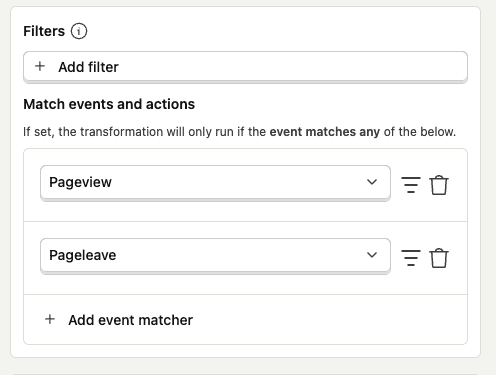
- Match events filters: These filters operate with OR logic. If an event matches ANY of these filters, it will be considered for dropping. For example, if you select both
$pageviewand$pageleaveevents, the transformation will match events of either type.
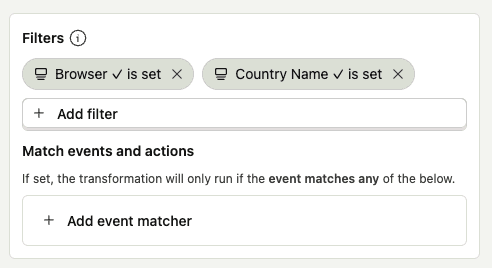
Property filters: These filters use AND logic and are applied after the event matching. ALL property conditions must be met for an event to be dropped. For example, if you set:
browser is setCountry Name is set
Only events that have BOTH properties matching these conditions will be dropped.
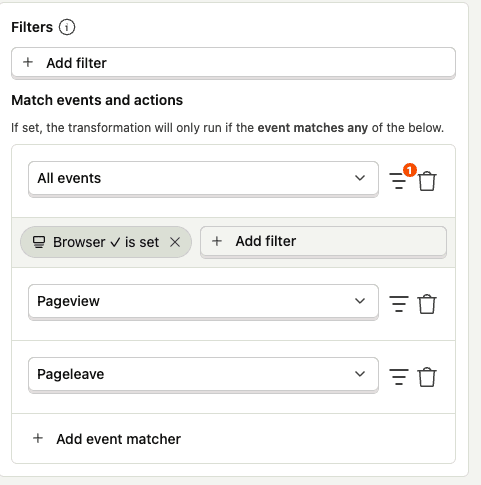
- Property filters on event match filter: You can add property filters directly to event match filters. For example:
- If you select "All events" and add a property filter "browser is set", it will drop ALL events that have the browser property set
- If you also add specific event matches like
$pageviewand$pageleave, it will drop:- All
$pageviewevents - All
$pageleaveevents - Any other events that have the browser property set
- All
Example of combined filters
Let's say you configure the following:
Match events:
$pageviewuser_signed_up
Property filters:
browser is setCountry Name is set
This configuration will drop:
- Any
$pageviewevents that have both browser and country name properties set - Any
$pageleaveevents that have both browser and country name properties set
Events that don't meet ALL these criteria (like a $pageview missing the browser property, or a $pageleave event missing the country name) will not be dropped.
Testing
Before enabling your drop events transformation in production, use the built-in testing interface to verify it works as expected:
- Go to the Testing section of your transformation
- Select an event to test with
- Run the test to see if the event would be dropped
- Iterate on your filters until you're satisfied with the results
FAQ
Is the source code for this transformation available?
PostHog is open-source and so are all the transformations on the platform. The source code is available on GitHub.
What happens to dropped events?
Dropped events are permanently deleted and cannot be recovered. They are removed before ingestion, so they won't appear in any analytics, cohorts, or exports.
How do I monitor what's being dropped?
Check the metrics and logs tabs regularly to ensure the transformation is working as expected. The metrics tab shows how many events have been processed and dropped.
Who maintains this?
This is maintained by PostHog. If you have issues with it not functioning as intended, please let us know!
What if I have feedback on this destination?
We love feature requests and feedback. Please tell us what you think.
What if my question isn't answered above?
We love answering questions. Ask us anything via our community forum.